ObjectStore Inspector User Guide
Chapter 8
Roots
Introduction
A root (also referred to as a database root) is a persistent object that serves as an entry point into an ObjectStore database. This chapter describes how to create and work with roots in Inspector.
For more information: To learn more about roots, see the ObjectStore C++ API User Guide.
In this chapter
This chapter covers the following topics:
Creating a Root
Two Parts to Creating a Root
The process of creating a root in Inspector has two steps:
You can perform these steps in either order; that is, you can create a root and then determine what values you want to set it to, or you can identify a set of values and define the root based on those values.
Note: Creating a root requires write access to the ObjectStore database.
Choosing a Root Value
You can define the root value using any of the following ObjectStore collection types:
You can set these collections to new or existing roots. Setting a collection to a new root creates the root; setting a collection to an existing root redefines the root based on that collection.
Creating a Root Only
This procedure describes how to create a root. Once you create the root, you must set its value based on a collection. See Redefining a Root Value for more information.
How to create a root
To create a root:
- Click Roots | Create on the menu bar.
The Define New Root dialog box appears.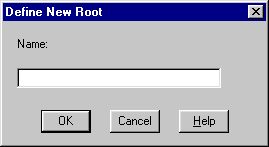
- Enter a name for the root in the Name field.
- Click OK.
The root is created and added to the Database Roots pane of the database view window.
- Set the root value using the procedure described on Redefining a Root Value.
Creating a Root and Defining the Root Value
Use this procedure to define a root based on the value of a data view, extent, or instance. See Redefining a Root Value to learn how to change values for an existing root.
How to create a root and root value
To create a root based on a data view, extent, or instance:
- Select the collection on which you want to base the root.
- Click Roots | Set Value on the menu bar.
- Select the appropriate collection type from the Set Value drop-down menu.
The Choose Root dialog box appears.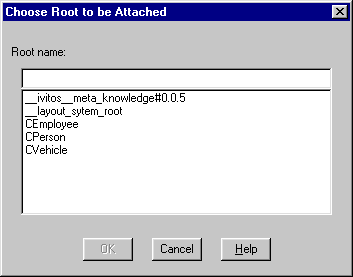
- Enter a name for the root in the Root Name field and click OK.
Inspector displays a dialog box asking if you want to create a new root.
- Click Yes.
Inspector displays another dialog box asking if you want to set the root value using the currently displayed collection.
- Click Yes.
A new root is created and appears in the Database Roots pane of the database view window.
Working with Roots
You can redefine root values and delete roots. Before performing either of these operations, be sure that you understand how these operations can affect existing applications.
Redefining a Root Value
Consequences
When you redefine a root value, applications that access the ObjectStore database using that root are unaffected. Note, however, that values identified by the previous root are no longer accessible - the root performs as before but uses new values.
How to change the value of an existing root
To change the value of an existing root:
- Select the data view, extent, or instance on which you want to base the root.
- Click Roots | Set Value on the menu bar.
- Select the appropriate choice from the Set Value drop-down menu.
The Choose Root dialog box appears.
- Select the root you want to redefine from the list box and click OK.
Inspector displays a dialog box asking if you want to set the root value using the currently displayed collection.
- Click Yes.
Inspector displays a warning informing you that changing the value of an existing root might affect applications using that root.
- Click Yes to proceed, No to cancel.
Deleting a Root
Consequences
When you delete a root, you are effectively making persistent data unreachable - applications that attempt to access the ObjectStore database using that root will fail. Generally speaking, you should never delete a root unless you are certain that you have no use for the values identified by it.
Deleting root values
When you delete a root, you can also delete the root values themselves. This is a more extreme operation than merely deleting the root itself.
Warning
Generally speaking, deleting a root and deleting a root's values are operations with a high degree of risk. You should perform these operations only when you are certain that
How to delete a root
To delete a root:
- Make sure that you no longer need to access the values identified by the root.
- If you plan to delete the root values themselves, make sure that you no longer need that data.
- Select the root from the Database Roots pane of the database view window.
- Click Roots | Delete on the menu bar.
Inspector displays the Deleting a Root dialog box.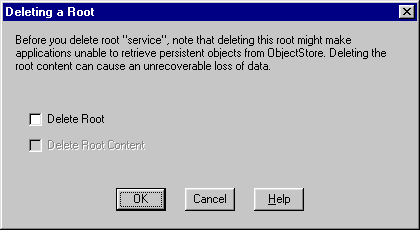
- Indicate whether you want to delete
- Click OK to continue.
[previous] [next]
Copyright © 1999 Object Design, Inc. All rights
reserved.
Updated: 05/07/99 16:43:48