ObjectStore Inspector User Guide
Chapter 9
Tools for Physical Analysis
Introduction
Database views, data views, and Navigation windows are all ways to explore the logical relationships and data in an ObjectStore database. The Physical Database Layout window provides a way for you to see how your data is organized in ObjectStore's persistent memory.
This chapter describes the Physical Database Layout window and how to use it, as well as other tools to help you work with free space and debug applications.
For more information: To learn about tools to help you work with the logical information associated with an ObjectStore database, see Chapter 2, Database Views, and Chapter 3, Data Views.
In this chapter
This chapter covers the following topics:
Overview of the Physical Database Layout Window
You use the Physical Database Layout window to examine how the data of an ObjectStore database is organized within the persistent memory managed by ObjectStore.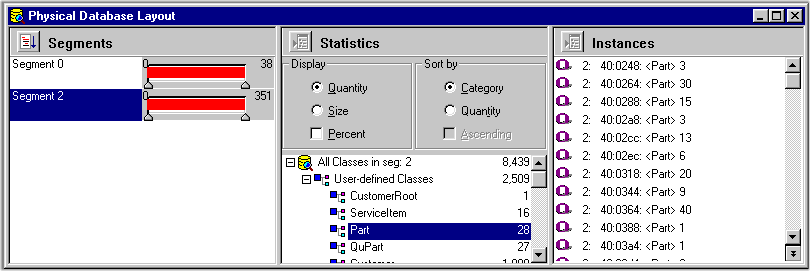
This section describes the Physical Database Layout window and the types of information it displays.
Opening the Physical Database Layout Window
There are three ways to open the Physical Database Layout window:
Note: The menu bar changes when you open a Physical Database Layout window.
Three Panes
The Physical Database Layout window contains three panes: the Segments pane, the Statistics pane, and the Instances pane. Each pane displays a different type of information about the ObjectStore database you are viewing with Inspector.
Changing pane dimensions
You can change the dimensions of the panes in the Physical Database Layout window view by dragging the borders that separate them.
To change pane dimensions:
- Place the pointer on the border of the pane you want to resize.
The pointer changes shape when it is placed on the pane border.
- When the pointer changes shape, drag the border to change the size of the pane.
Filling the Panes
The Segments pane and the Statistics pane are populated by default when you first open the Physical Database Layout window. (The Statistics pane displays information for all user segments in the database.)
To fill the Instances pane, click Refresh | Instances on the menu bar.
Alternative: Click the Refresh tool at the top of the Instances pane.
Refreshing the Panes
You need to refresh the Statistics and Instances panes of the Physical Database Layout window any time you change the focus of the information currently displayed in the window.
You do not have to refresh the Segments pane - it always shows all the segments for a given database.
Examples: when to refresh
You need to refresh when you
How to tell if a pane needs to be refreshed
Inspector provides visual cues that can remind you that the Statistics pane or Instances pane needs to be refreshed.
How to refresh
The following table summarizes how to refresh the Statistics and Instances panes.
Note: The speed with which the information in the Physical Database Layout window is refreshed depends on a number of factors, including the database and segment size, the number of pages you have selected, and the information you are displaying. Inspector displays a dialog box that allows you to cancel a refresh operation once it has started.
Window Options
The Physical Layout page of the Options dialog box has options for default display values.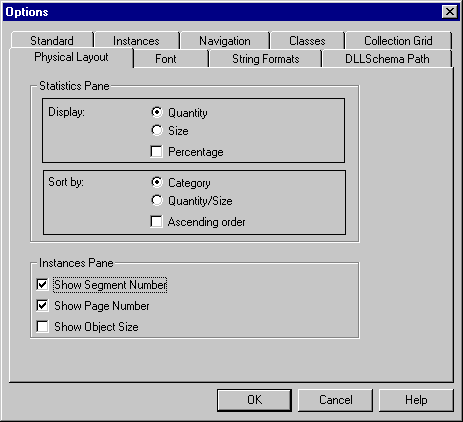
For more information
Segments
The Segments pane displays a list of all the segments associated with the current database.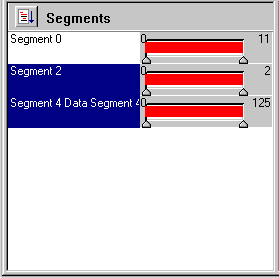
Segment 0, the first segment displayed, is reserved for ObjectStore. The other segments displayed in the pane are user segments.
Purpose of the Segments Pane
The Segments pane acts as the main filter for the other panes in the Physical Database Layout window. In other words, the Statistics pane and the Instances pane display information based on the currently selected segment and pages.
What Segments Are Selected?
By default, all user-defined segments in the database are selected. (Segments reserved for ObjectStore are not selected.)
How to select a segment
To select a segment, click it.
To select multiple segments,
To select all the segments in the database, click Segments | Select All on the menu bar, or click the Select Whole Database button on the Segments pane.
Tip: You need to refresh the Statistics and Instances panes any time you change the segment or page range. See Refreshing the Panes for more information.
Segment Pages
The field to the right of the segment name shows
Use slider bars to select a block of pages
By default, Inspector selects all the pages in a segment. You can use the slider bars to focus on a given block of contiguous pages. You can select different blocks of pages for different segments.
To select a block of contiguous pages:
- Drag the first slider to identify the start of the block.
Tip: When you drag a slider, Inspector displays a pop-up that identifies the current page.
- Stop dragging when the pop-up displays the page number on which you want to define the start of the block.
- Repeat step 1 and step 2 with the other slider to define the end of the block.
- Refresh the Statistics and Instances panes.
See Refreshing the Panes if you need help with this step.
The Segment Properties Dialog Box
The Segment Properties dialog box displays general, free space, and current page information.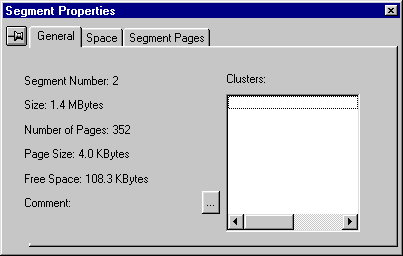
How to open the Segment Properties dialog box
To open the Segment Properties dialog box:
- Select the segments you want to examine.
- Click Segment | Properties from the menu bar.
Tip: To review the properties of individual segments one after another, click the pushpin button. When you select a new segment from the Segments pane, the Segment Properties dialog box remains open. Existing information is replaced with information for the segment you just selected.
Segment Options
The Physical Layout page of the Options dialog box contains a display option for the Segment Properties dialog box. The Always Compute and Show Free Space option determines whether or not Inspector updates the space information displayed on the General and Space pages of the Segment properties dialog box.
To learn more about options and how to set them, see Inspector Options.
Statistics
The Statistics pane displays class information for the currently selected segments and pages in the Segments pane.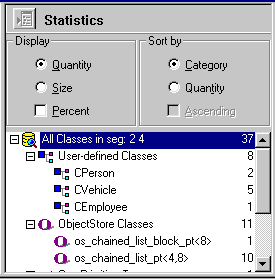
What Information Is Displayed
The Statistics pane lists all the classes for the currently selected segments and pages in the Segments pane. By default, the classes are sorted by category and are displayed in this order:
The number of instances for each class is displayed by default. You can change sort and display options in the Statistics pane, and you can set new defaults in the Options dialog box. See Statistics Options for more information.
Statistics Options
The Physical Layout page of the Options dialog box contains sorting and display options for the Statistics pane.
The default is to sort the list by category in a descending order.
To learn more about options and how to set them, see Inspector Options.
Instances
The Instances pane displays instance information for the currently selected classes in the Statistics pane.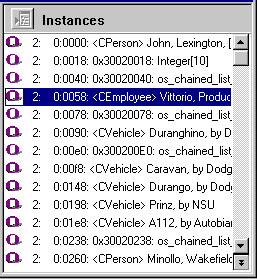
What Information Is Displayed
The Instances pane lists the instances for the currently selected classes in the Statistics pane. By default, Inspector displays the following for each instance:
If you want, you can also display the size in bytes occupied by the instance. You can change display options and set new ones in the Options dialog box. See Instance Display Options for more information.
Instance format
The Instance Format dialog box controls how an instance appears in the Instances pane (and elsewhere in Inspector). To learn more about changing an instance's appearance, see Customizing the Instance Display.
Filling the Instances Pane
To fill the Instances pane:
- Select the class or classes you want in the Statistics pane. (See Selecting Classes if you need help with this step.)
- Click Refresh | Instances on the menu bar.
Alternative: Click the Refresh tool at the top of the Instances pane.
Selecting Classes
You need to select one or more classes before you can fill the Instances pane. Individual classes are not selected by default.
How to select classes
To select a single class, click it.
To select multiple classes:
Tip: You need to refresh the Instances pane any time you select a class. See Refreshing the Panes for more information.
Instances Options
The Physical Layout page of the Options dialog box contains sorting and display options for the Instances pane. You can show or hide the following for each instance.
The default is to hide the page number.
The default is to hide the size.
To learn more about options and how to set them, see Inspector Options.
Working with Free Space
Inspector provides two ways to help you work with free space in an ObjectStore database. You can
Retrieving Space and Free Space Information
Inspector retrieves space and free space information from segment attributes and displays this information on the Space page of the Segment Properties dialog box. (This page is not available in UNIX.)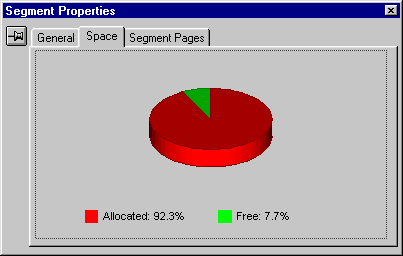
The amount of free space shown includes blocks of free space interspersed among other objects in the segment, as well as any free space at the end of the segment.
This information is always available to Inspector; because it does not need to be calculated, it can be obtained quickly.
For more information: To learn more about the Segment Properties dialog box, see The Segment Properties Dialog Box.
Calculating Free Space
Inspector calculates free space by default. The resulting information appears on the Statistics and Instances panes of the Database Physical Layout window.
Inspector calculates segment free space by scanning each segment. The amount of free space includes only those blocks of free space that are interspersed among other objects in the segment. Any trailing free space at the end of the block is not considered.
Because the free space is calculated by an active scan of a segment, the time it takes to calculate free space can vary widely from segment to segment, and from database to database.
For more information: To learn more about the Database Physical Layout window, see Overview of the Physical Database Layout Window.
Setting the space calculation option
The option on the Segment menu for calculating free space is on by default.
To change the option for calculating free space, click Segment | Compute Free Space on the menu bar.
Tip: If the option is off and you turn it on again, you need to refresh the Statistics and Instances panes in order to see the calculated free space information. See Refreshing the Panes for more information.
Tools for Debugging
In order to debug applications and databases, it is useful to be able to locate the object within a database. Inspector provides a tool that allows you to locate an instance based on either of its
Tip: Consider using segment and offset to locate an instance. Using an instance's hexadecimal address might not always provide correct results. For example, the same object in two ObjectStore applications might have the same hexadecimal address; but those objects will always have unique segment and address information.
How to Locate an Instance
To locate an instance in the Instances pane of the Physical Database Layout window:
- Click Segment | Go To Address on the menu bar.
The Go To dialog box appears.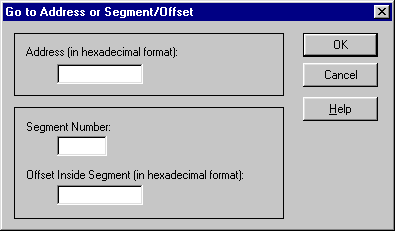
- Enter the instance's address, in hexadecimal format, or the instance's segment and offset.
- Click OK.
The instance you are trying to locate appears at the top of the Instances pane.
[previous] [next]
Copyright © 1999 Object Design, Inc. All rights
reserved.
Updated: 05/07/99 16:43:52
