ObjectStore Inspector User Guide
Chapter 1
Overview
Introduction
This chapter describes the ObjectStore Inspector and some of its main features, and tells you how to get started.
In this chapter
This chapter covers the following topics:
Introducing ObjectStore Inspector
What Is Inspector?
ObjectStore Inspector is a graphical tool that lets you browse, edit, query, and report on the data in an ObjectStore database.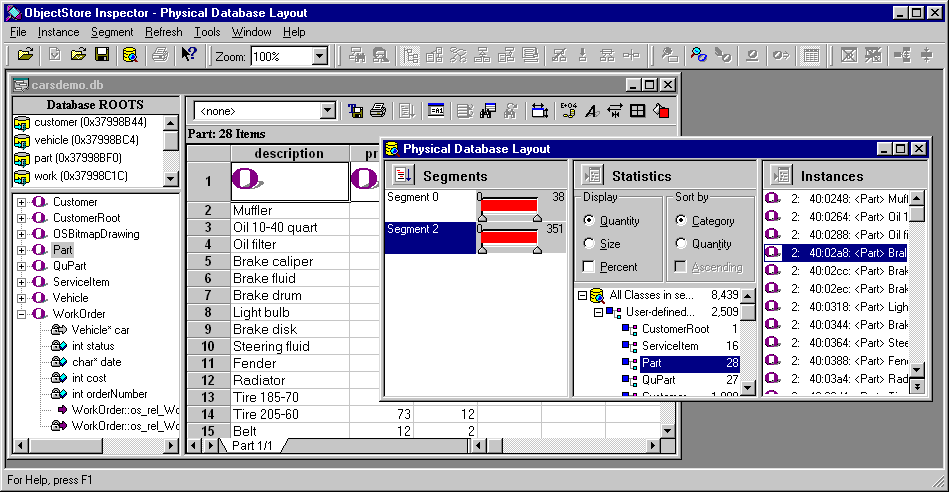
Using Inspector, you can
- Analyze and document the logical information represented by ObjectStore database schemas. Inspector's data views let you filter and order ObjectStore collections, and you can use database views to create custom schema diagrams. You can navigate instance relationships, and save the resulting navigation path for future use.
- Create, read, update, and delete ObjectStore application data in test and production environments - you can work with ObjectStore data directly from Inspector using manual editing tools and user-defined methods.
- Analyze the physical characteristics of ObjectStore databases at the segment, page, and instance level. The Physical Database Layout window provides detailed space and free space information and enables you to look up a particular instance based on its address or segment offset. You can also review layout, segment, and binary dump information for individual instances.
- Share ObjectStore database information by creating reports based on ObjectStore application data, printing schema diagrams and data views, and exporting collections to other applications. You can also use Inspector as an OLE server in documents from OLE container applications.
Opening ObjectStore Databases
You can open one ObjectStore database at a time using Inspector. If you want, you can start multiple Inspector sessions and use those sessions to open the same database.
Supported formats
Inspector supports ObjectStore databases stored in any of the following formats:
For more information on storing ObjectStore databases, see the ObjectStore C++ API User Guide.
Read/write access
Inspector opens ObjectStore databases in MVCC (Multiversion Concurrency Control) mode - this enables Inspector to browse databases that are concurrently accessed and updated by other ObjectStore processes.
Some Inspector operations, however, require that Inspector open a database in write mode. These operations include
In these cases, Inspector opens the database in write mode only for as long as is required to complete the operation. If Inspector needs to access a remote database to perform one of these operations, you must ensure that the remote ObjectStore server grants Inspector write access.
How to Start Inspector
To start ObjectStore Inspector, select Program | ObjectStore Inspector 6.0 | ObjectStore Inspector 6.0 from the Start menu.
The Inspector desktop appears.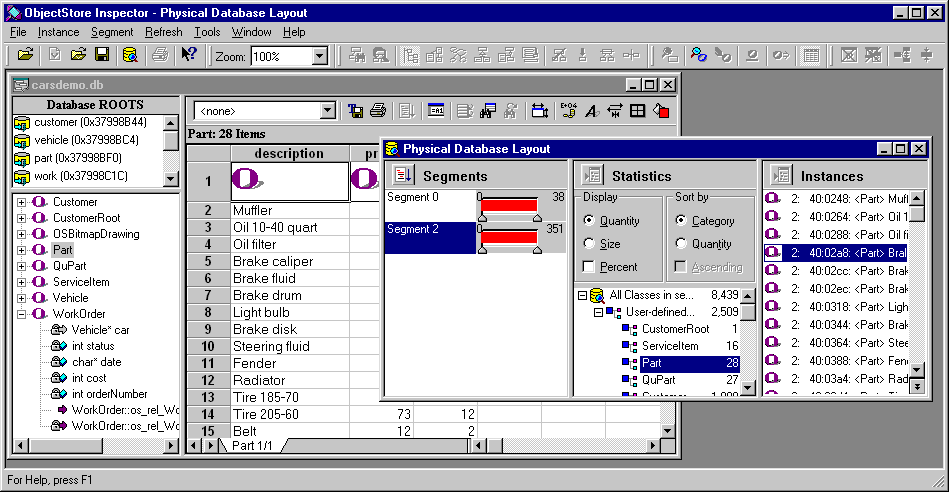
The Inspector desktop
The Inspector desktop is similar to those of other Windows applications - a title bar identifies the current database, a menu bar displays Inspector commands. An optional toolbar, a workspace, and a status bar that provides tool and menu prompts complete the desktop.
Open the carsdemo Database
Consider opening carsdemo.db, or one of the other sample databases installed with Inspector, before continuing with this guide. Having a database open will make it easier for you to explore Inspector as you learn about it.
Tip: The carsdemo.db database used in this manual, and other sample databases, is located in the <install>\examples\DemoDBs directory, where <install> is the directory in which you have installed ObjectStore Inspector.
How to open carsdemo
To open the carsdemo database:
- Click File | Open Database on the menu bar.
Alternative: Click the Open DB tool on the toolbar. The Open dialog box appears.
- Select the carsdemo sample database in the <install>\examples\DemoDBs directory and click OK.
The main database view window appears within the Inspector desktop.
See the next section, Inspector Features, to learn more about the database view window and other Inspector tools.
Inspector Features
This section introduces the main database view and other tools Inspector provides to help you view and modify ObjectStore information.
Main Database View Window
The main database view window appears in the Inspector desktop by default when you open a database.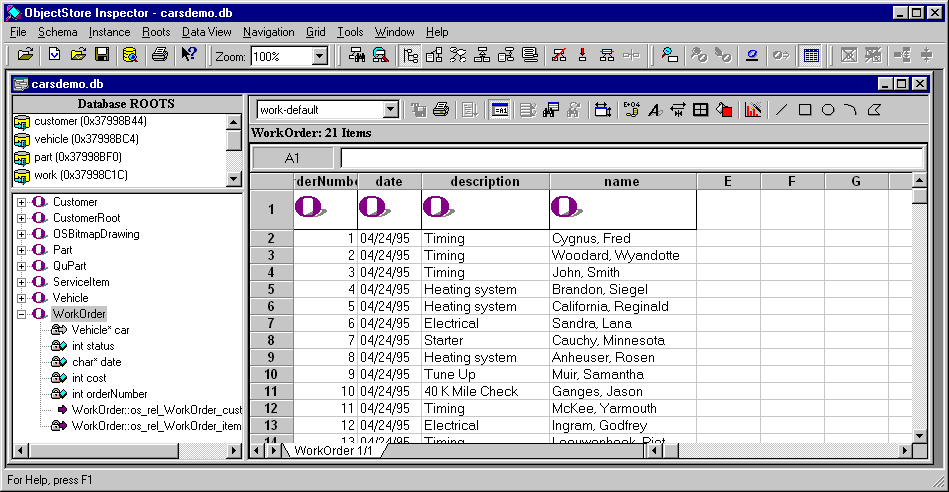
Three panes
The main database view is composed of three panes, each of which provides you with a different view of information contained in the database. It is through these panes, and other windows and dialog boxes, that you interact with ObjectStore Inspector and the ObjectStore database.
You can create multiple database views
You can create custom database views based on the contents of the main database view. See Chapter 2, Database Views for more information.
Data Views
A data view is similar to the instance pane in a database view: both display ObjectStore collections in either a grid or list format.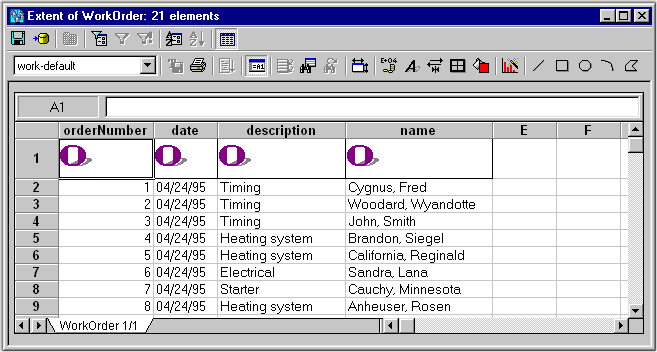
Data views provide unique filtering and ordering features that help you customize the presentation of ObjectStore collections. Any time you want to manipulate the data displayed by an ObjectStore collection, you should use data views to take advantage of these features.
For more information on working with data views, see Chapter 3, Data Views.
Instance Window
The Instance window displays the type, name, and value for every data member associated with a specific class instance.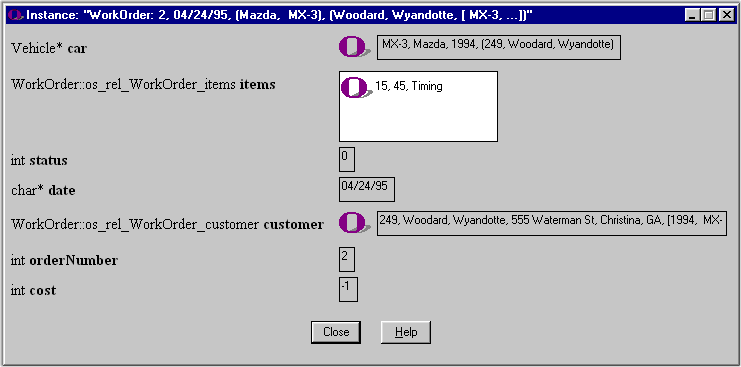
Tip: You control the appearance of an instance - that is, which of its data members are displayed and whether or not it is associated with an icon - using the Instance Format dialog box.
See Chapter 5, Classes and Instances to learn more about working with instances.
Navigation Window
The Navigation window lets you see how instances are related to one another.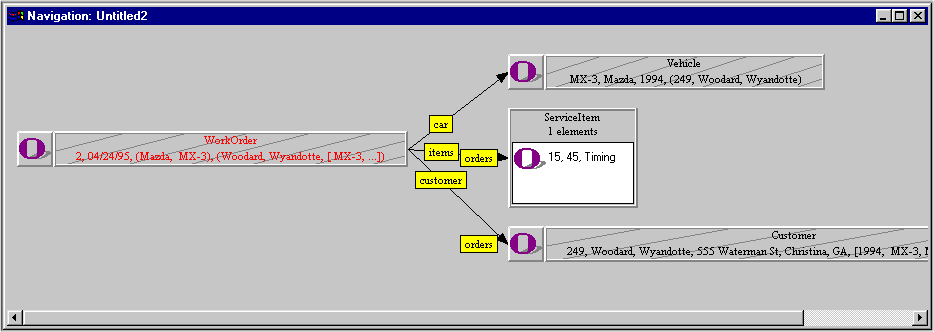
Inspector opens a Navigation window for you as you navigate from instance to instance - in the same database or across different databases. As you navigate, Inspector updates the Navigation window to record your path.
As an alternative, you can ask Inspector to navigate all relationship paths of an instance for you, using the Auto Navigation feature.
See Navigating Instances to learn more about navigation.
Physical Database Layout Window
The Physical Database Layout window displays physical information about the ObjectStore database at the segment and page level.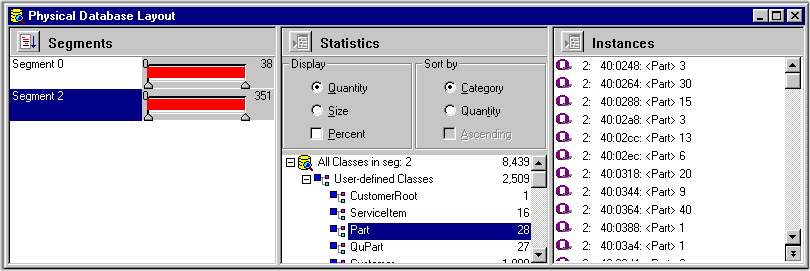
For any group of segments and pages you select, Inspector displays the classes stored in that part of ObjectStore's persistent memory. Once you select a class, Inspector displays the address and segment offset information for each instance in the class.
See Chapter 9, Tools for Physical Analysis for more information on the Physical Database Layout window and other features for working with physical aspects of ObjectStore databases.
Use Inspector to Create Multiple Views of the Same Database
You can use the tools you have just read about to create multiple views of an ObjectStore database. For example, for the same database you can create
All this information, and other customization you perform in Inspector, can be saved with the database - the next time you open that database in Inspector, every custom database view, data view, instance format, and so on, is available to you.
How information is saved
Instance format information is saved implicitly when it is defined. You save custom database views and data views explicitly, either at the time you create them, or on closing the database (or exiting from Inspector). For example, if you create a data view but have not saved it when you close the database, Inspector displays a prompt giving you the chance to save it.
Metaknowledge
Metaknowledge is information Inspector stores about a particular database. Metaknowledge includes any custom database views and data views you have defined, as well as other types of information about the database. See Appendix C, Working with Metaknowledge for more information.
Editing ObjectStore Database Information
You can use Inspector to modify ObjectStore data.
User-Defined Methods
A user-defined method is a method that can be called by Inspector to
In addition you can use a user-defined method to retrieve sets of persistent objects.
You define user-defined methods in the ObjectStore DLL schema of your ObjectStore database. Once it is defined, you register and invoke the method in Inspector.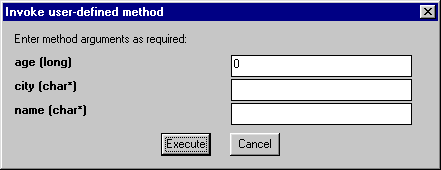
For more information, see Chapter 7, User-Defined Methods.
Edit Data Member Dialog Box
You use the Edit Data Member dialog box to edit instances of classes you select using Inspector.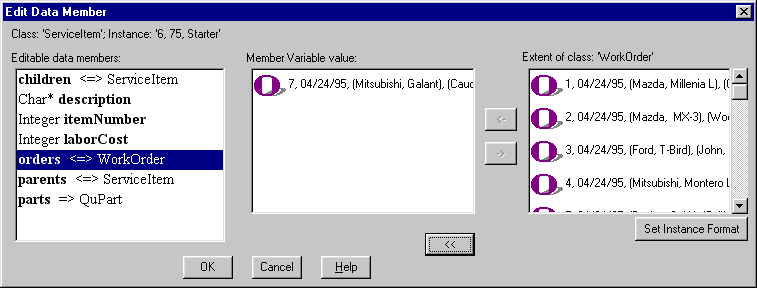
For more information, see Chapter 5, Classes and Instances.
Sharing ObjectStore Database Information
Inspector has tools to help you present and share information about an ObjectStore database.
Printing
Using Inspector, you can
See Appendix A, Printing for more information.
Exporting
You can use Inspector to export ObjectStore collection data to files in several popular formats, including XML, Excel, and HTML.
See Exporting a Collection Grid for more information.
Using Inspector as an OLE Server
You can also use the database schema or the instance pane as an OLE server, embedding live database information in any OLE container application, such as Microsoft Word or Excel.
See Appendix B, Using Inspector as an OLE Server for more information.
Inspector Options
Inspector has options that control both functional behavior and display characteristics. For example, there are options that let you
Tip: Consider leaving Inspector options set with their default values until you have gained more experience using Inspector.
Where You Set Options
You set options using the Options dialog box.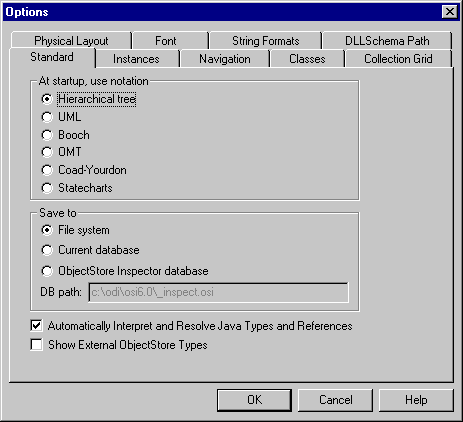
The Options dialog box contains several tabbed pages; options are grouped by feature.
How to Set Options
To set options:
- Click Tools | Options on the menu bar.
The Options dialog box appears.
- Click the tab for the options you want to set.
- Make your changes.
- Click OK.
When Options Take Effect
Options can take effect
[previous] [next]
Copyright © 1999 Object Design, Inc. All rights
reserved.
Updated: 05/07/99 16:42:16