ObjectStore Inspector User Guide
Chapter 6
Collection Grids and Lists
Introduction
Collection grids and collection lists are the primary way to work with ObjectStore collections in Inspector. This chapter describes the differences between collection grids and lists, and describes how to work with them.
In this chapter
This chapter covers the following topics:
Overview
Collection Grid Compared to Collection List
Collection grids and lists can be displayed in the instance panes of database views and in data views.
Example of a collection grid
Both grids and lists display the same information about an instance, that is, the data members, read user-defined methods, and icons you choose to associate with a particular instance. (See Customizing the Instance Display for more information.)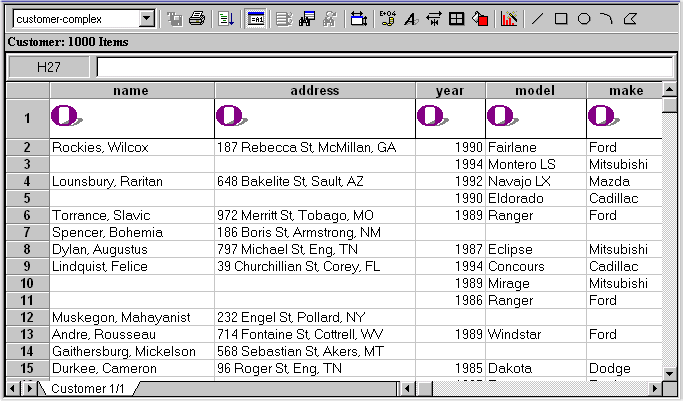
Example of a collection list
Both grids and lists can be displayed at any time, and it is easy to switch a display from one to the other.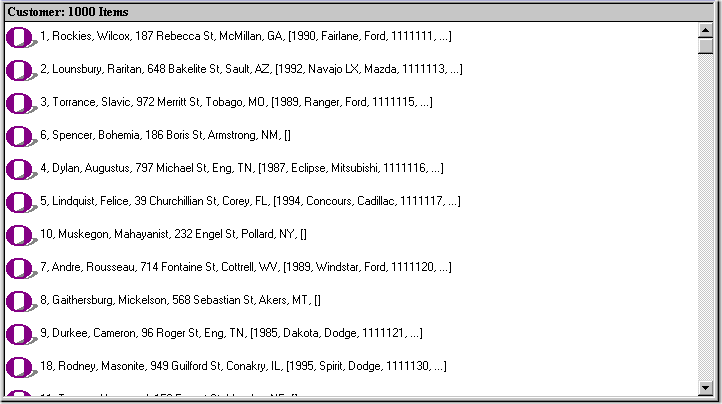
Choosing a Display Format
The following table summarizes some of the main differences between collection grids and collection lists. You might want to consider these factors when choosing a display format.
Collection type dictates display format
ObjectStore collections of heterogeneous objects - that is, objects that do not share a common ancestor object - are always displayed using a collection list; they cannot be displayed using a collection grid. Inspector displays an informational dialog box when you are loading a heterogeneous collection.
Switching the collection display
To turn the collection grid off and on (it is on by default), select Tools | Show Instances In Grid from the menu bar.
Alternative: Click the Use Grid Mode tool in the toolbar.
Populating Collection Grids and Lists
The first time you open a database, the instance pane displays an empty collection grid. Regardless of whether you choose to display ObjectStore collections using grids or lists, you populate them using the same procedure.
How to populate a grid or list
To populate a collection grid or list, select Instance | Show Class Extents from the menu bar, or select Show Class Extents on the class shortcut menu.
Alternatives: Click the Show Class Extent tool in the toolbar; or double-click on a root in the Database Root pane, or on a class in the schema pane.
How Inspector Loads Collections
The way Inspector loads an ObjectStore collection varies based on whether you are displaying the collection using a collection grid or a collection list. Remember that Inspector always displays heterogeneous collections using a collection list.
Loading collection grids
Inspector loads the ObjectStore collection grid by fetching groups of instances from the ObjectStore database. The default size of each group is 150 instances. (Note that the actual number of instances might be more than the default, depending on the number of navigated instances associated with each instance fetched from the database.)
Inspector fetches the collection one group at a time on an as-needed basis. For example, if the collection you are displaying has 450 instances, Inspector loads only the first group, or 150 instances. The next group is fetched only if you request it (by scrolling the grid past the last instance in the first group of 150, for example).
Based on the size of your database and the number of instances associated with a typical collection, you might want to adjust this number up or down. You can change this number on the Collections Grid page of the Options dialog box. See Collection Grid Options for more information.
Tip: You can force Inspector to load the entire collection into a grid, regardless of the default Options setting, by clicking Grid | Load Entire Collection on the menu bar, or by clicking the Load Entire Collection tool on the toolbar.
Loading collection lists
When you display ObjectStore collections in a list, Inspector loads only enough instances to fill the available window in which the list is displayed. Additional instances are fetched on-demand as you scroll the collection list.
Tip: When you drag the scroll bar, Inspector displays the current position in the list in a small pop-up caption that appears next to the scroll bar. This feature can help you quickly locate a particular instance in the collection.
Refreshing Collections
A collection list corresponds one-to-one with the ObjectStore database - it always reflects the current state of the database.
A collection grid, on the other hand, is a snapshot of the underlying database and needs to be refreshed periodically if you suspect the data might have changed since you first displayed the collection (it has been changed by an application, or by another Inspector instance, for example).
How to refresh a collection grid
To refresh a collection grid, click Grid | Refresh Collection on the menu bar.
Tip: Inspector refreshes a collection automatically any time you switch from the collection list to the collection grid display.
Parts of the Grid
Sheets
Grids display collections using sheets that can hold about 16,000 rows. Inspector automatically adds the sheets needed to display the entire collection. Tabs at the bottom of the sheet display the class name and page number in current page/total pages format.
When a new sheet is added, any customization you have done to the formatting of the first sheet is copied to the second sheet. You can customize sheets that are already displayed by selecting them and then formatting them as desired.
To select multiple sheets:
- Click the tab of the first sheet you want to select.
- Press and hold the Shift key.
- Click the tabs of the other sheets you want to select.
To learn more about the different ways you can customize the appearance of a grid, see Customizing a Collection Grid.
Edit bar
The edit bar appears by default at the top of the grid. The left side of the edit bar displays the grid address that contains the current cell focus. The right side of the grid displays the contents of that cell. (The edit bar is available on Windows platforms only.)
The edit bar can be a convenient way to add formulas to a collection because you can see more of what you type than you would entering the formula directly in the cell.
Tip: You can turn the edit bar off to gain more space for the collection display. To turn the edit bar off, click Grid | Edit Bar on the menu bar, or click the Show/Hide Edit Bar tool on the toolbar.
Finding a string
The collection grid enables you to search for a string within the collection, using the Find String dialog box: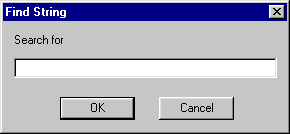
To search for a string:
- Click Grid | Find String on the menu bar.
The Find String dialog box appears.
- Enter the string you want to find in the Search For field.
- Click OK.
If found, the cell containing the string you searched on appears in the upper left corner of the grid. The Edit Bar displays the cell location and value.
- To continue the search, select Grid | Find Next on the menu bar.
Collection Grid Options
You use collection grid options to control performance and appearance characteristics of collection grids.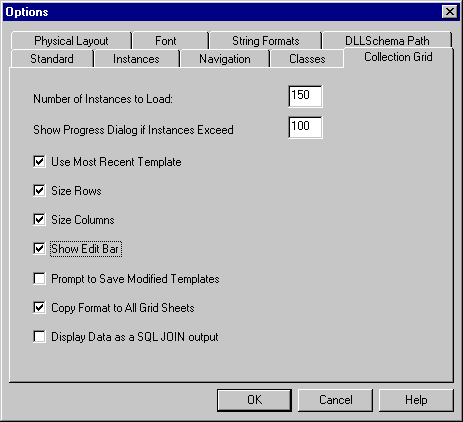
How to set collection grid options
To set collection grid options:
- Click Tools | Options on the menu bar.
The Options dialog box appears.
- Click the Collection Grid tab.
- Set the default values for the options you want.
- Click OK.
Other Grid Features
In addition to changing the appearance of a grid, Inspector provides the following features to help you work with collection grids and share collection grid data.
Customizing a Collection Grid
As described in Features for Changing Collection Grid Appearance, Inspector provides several features to help you customize collection grids. This section describes these features.
Tip: You can save the changes you make to a grid using a grid template. See Saving Your Modifications for more information.
Customization Procedure
The procedure for customizing a collection grid is the same regardless of which feature you are using.
- Select the cell or cells you want to format.
Tip: If you plan to save your formatting changes, consider selecting the entire column to ensure that the format is applied in a uniform way, regardless of the instance that occupies a particular cell.
- Select the feature you want to use from the main database view menu bar or the data view toolbar.
- Use the dialog box to define the feature you want to apply.
- Repeat step 1 through step 3.
- Optionally, save the customized grid. See Saving Your Modifications.
Note: The user interface for these features on UNIX platforms might vary from the interface described in this section.
Selecting Cells
Most cell operations require that you select the cell on which you want to perform the operation. There are several ways to select cells in collection grids. Most are probably familiar to you if you have worked with spreadsheet applications.
Tip: You can use the Enter key and the arrow keys to move the cell focus around the grid.
Changing Cell Dimensions
You can change a cell's height and width by dragging the appropriate border of the row or column header, respectively.
Changing the Alignment of Cell Data
You set the alignment of cell data using the Alignment dialog box.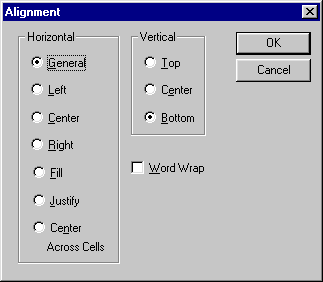
To change alignment:
- Select the cells whose data you want to align.
- Click Grid | Cell Format | Alignment on the menu bar.
Alternative: Click the Alignment tool on the toolbar. The Alignment dialog box appears.
- Select the horizontal and vertical alignment options you want.
- Use the Word Wrap check box to indicate whether or not you want the text in a cell to wrap if the cell is not wide enough to display the cell name.
- Click OK.
Customizing the Grid Border
You can select different patterns and colors for the grid cell borders using the Borders dialog box.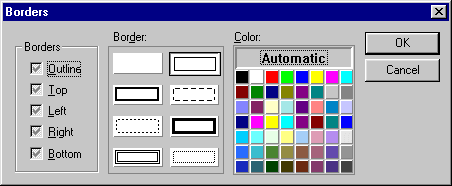
To change the grid border:
- Select the cells whose border you want to customize.
- Click Grid | Cell Format | Border on the menu bar.
Alternative: Click the Border tool on the toolbar. The Border dialog box appears.
- Select the pattern and color options you want.
- Click OK.
Changing Cell Color and Pattern
You can fill cells with colors and patterns using the Pattern dialog box.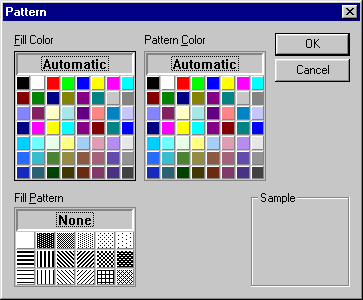
- Select the cells whose color or pattern you want to change.
- Click Grid | Cell Format | Pattern on the menu bar.
Alternative: Click the Pattern tool on the toolbar. The Pattern dialog box appears.
- Select the fill color (background), fill pattern (design), and pattern color you want to use.
The Sample field displays how the cells will look with the pattern and color you have selected.
- Click OK.
Changing the Font
You can select the font used to display data values in the collection grid using the Font dialog box.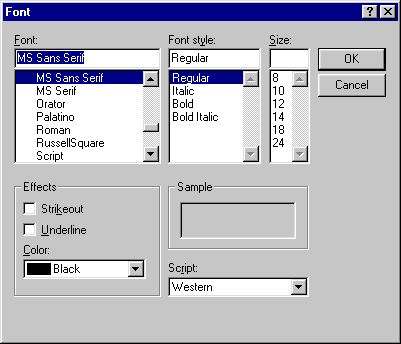
- Select the cells whose font you want to change.
- Click Grid | Cell Format | Font on the menu bar.
Alternative: Click the Font tool on the toolbar. The Font dialog box appears.
- Select font elements you want to use (name, style, size, special effects, and so on).
The Sample field displays how the data will appear using the font elements you have selected.
- Click OK.
Custom Formats for Numbers
You can specify special formats for numbers using the Custom Format dialog box.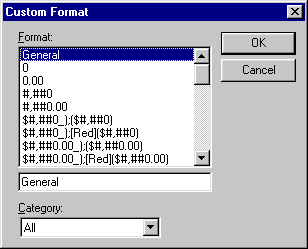
You can select formats for numbers in different categories (currency, date, scientific, for example). In addition, if you are familiar with Excel cell format, you can create your own customization scheme.
- Select the cells for which you want to use a custom number format.
- Click Grid | Cell Format | Custom Number Format on the menu bar.
Alternative: Click the Custom Number Format tool on the toolbar. The Custom Format dialog box appears.
- Select the category of number formats you want to review in the Category drop-down list.
- Select the style you want to use from the Format list box.
The entry field beneath Format list box displays the syntax that will be used to format number data.
- Optionally, customize the syntax to create your own format scheme.
- Click OK.
Annotating the Grid
A grid annotation is comparable to a screen caption (or callout).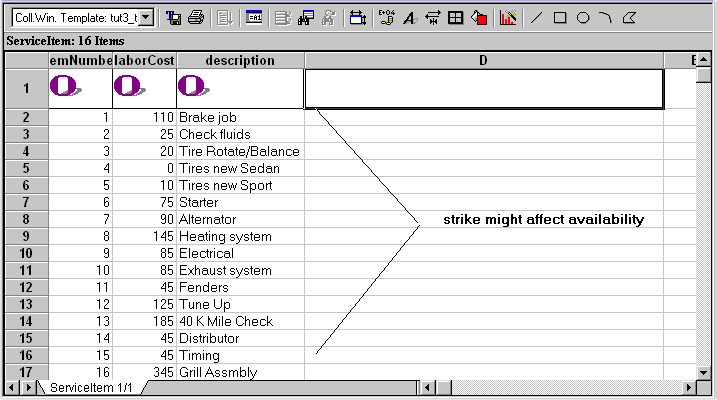
You can create a grid annotation using
By default,
Using text to annotate a grid
To annotate a grid with text:
- Position the grid where you want to create the annotation.
- Click the cell and type your comment.
- Press Enter.
Using shapes to annotate a grid
To annotate a grid using a shape:
- Position the grid where you want to draw the shape.
- Select Grid | Draw Shape | and select the shape you want to draw.
Alternative: Click the appropriate shape tool from the toolbar. The pointer changes to a cross (+).
- Draw the shape on the grid.
The shape appears on the grid.
Changing the shape's line
To change the line used to represent the shape:
- Select the shape.
- Click Grid | Shape Format | Line Style on the menu bar.
The Line Style dialog box appears.
- Select the desired line style, weight, and color.
- Click OK.
Changing the shape's size
To change the size of a shape you have drawn:
- Select the shape.
Grab handles appear on the shape border to let you know it is selected.
- Drag the shape by one of its grab handles until it is the size you want.
Changing the shape fill color and pattern
You change the fill color and pattern of the shape using the Pattern dialog box, as described in Changing Cell Color and Pattern.
Tip: To display the Pattern dialog box to format a shape:
- Select the shape.
- Click Grid | Shape Format | Pattern on the menu bar, or click the Color and Pattern tool on the toolbar.
Changing the placement of the shape
If two shapes you have drawn overlap, the shape drawn most recently will be on top. You can change the placement of shapes relative to each other by moving a shape to the front or to the back of the other shapes on the grid. (Shapes are always placed on top of the grid.)
To change the placement of a shape:
- Select the shape.
- Click Grid | Shape Format | Bring to Front or Send to Back from the toolbar.
Deleting a shape
To delete a shape:
- Select the shape.
Grab handles appear on the shape border to let you know it is selected.
- Press the Delete key, or press Ctrl + X.
Creating Formulas
As with other spreadsheet applications, you can create formulas in collection grids. You can use them to perform operations on the values in one or more columns in a collection grid. (This feature is available on Windows platforms only.)
Tip: Consider using the edit bar to enter formulas.
Copying formulas
Typically, a formula performs an operation on two or more cells representing ObjectStore instances to produce a value in a new cell. For example, a car dealership might want to obtain the cost of recharging an air conditioning unit by multiplying the amount of time required to perform the service by the mechanic's hourly wage.
You define the formula in an empty cell, that is, one not already occupied by a collection instance. Once the formula is created, you can copy it down the entire column. Continuing the previous example, copying the formula down the column would provide the cost of all repairs listed in the collection - tune-ups, timing belt replacement, and so on.
How to create a formula
To create a formula:
- Select a cell not that does not represent a value in the ObjectStore database.
The edit bar displays the coordinates of that cell.
- Using the edit bar or the cell itself, enter the formula you want to use.
- Press Enter to perform the operation.
The value derived by the formula appears in the cell.
How to copy a formula
If the formula performs as you expect it to, you might want to copy it down the entire column.
To copy a formula to other cells in a column:
- Select the cells to which you want to copy the formula.
Tip: To select an entire column at once, click the column heading.
- Click Grid | Copy Cell Down.
The formula is copied to the cells you specified. The value derived by the formula appears in the cells.
Saving Your Modifications
You can save the changes you make to a collection grid using a grid template. In addition, you can create multiple grid templates for a single collection; this allows you to display the same collection in different fashions for different audiences.
What is saved with the grid?
Inspector saves the following information for a grid:
How to save a grid template
To save a grid template:
- Make the changes you want to the collection grid's appearance.
- Click Grid | Template | Save As on the menu bar.
Tip: If you want to save changes to an existing grid template, click Grid | Template | Save As on the menu bar The Save Grid Template dialog box appears.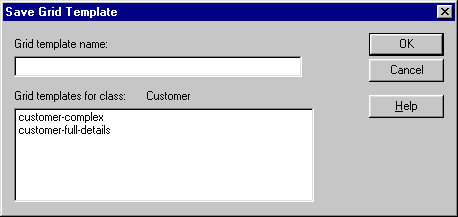
- Type a name in the Grid Template Name field and click OK.
How to apply a grid template
The name of the current grid template is displayed in the upper left corner of the toolbar.
This field displays <none> if no grid template is applied to the collection.
Note: The collection is refreshed when you apply a grid template.
To apply a grid template:
- Click Grid | Template | Open on the menu bar.
The Open Grid Template dialog box appears.
- Select the template you want to apply from the Grid Templates for Class list box.
- Click OK.
Alternative
To apply a template, select the template you want to apply from the grid template drop-down list in the toolbar.
How to delete a grid template
To delete a grid template:
- Click Grid | Template | Delete on the menu bar.
The Delete Grid Template dialog box appears.
- Select the grid you want to delete from the Grid Templates for Class list box.
- Click the Delete button.
The system displays a message if you are attempting to delete the current template. If you choose to delete it, the collection grid is displayed without a grid template.
Using the Chart Wizard
The Inspector Chart Wizard gives you the ability to create charts and graphs based on the ObjectStore data displayed in collection grids. Chart Wizard functionality is similar to that available in popular spreadsheet applications. The benefit of the Chart Wizard is that you can create charts and graphs without leaving Inspector.
Note: This feature is available on Windows platforms only.
Using the Wizard
Like other wizards, the Chart Wizard lets you select whether you want to
Tip: Running the wizard manually is a good way to learn about its features. Once you are familiar with them, you can run the wizard automatically.
Wizard Steps
There are four steps to the Chart Wizard. Each is displayed on a separate page of the Chart Wizard dialog box.
Step 1 - Gallery
The Gallery page lets you select the type of graph or chart you want to create.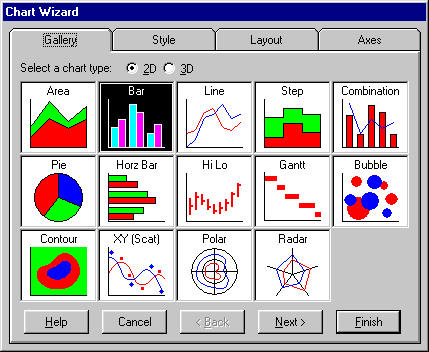
There are different types of two-dimensional and three-dimensional charts.
Step 2 - Style
The Style page lets you choose a style for the graph.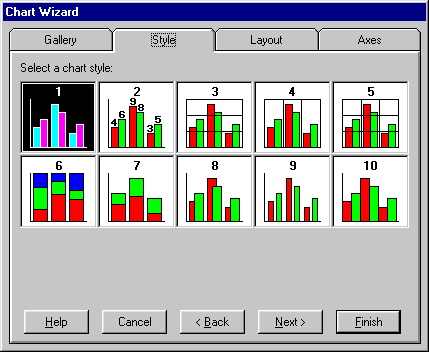
Step 3 - Layout
The Layout page provides options that help you format graph elements such as the title, footnote, and legend.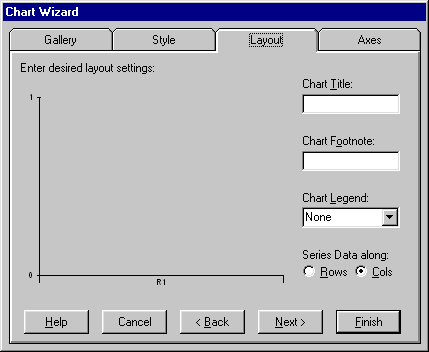
Step 4 - Axes
The Axes page lets you label graph axes.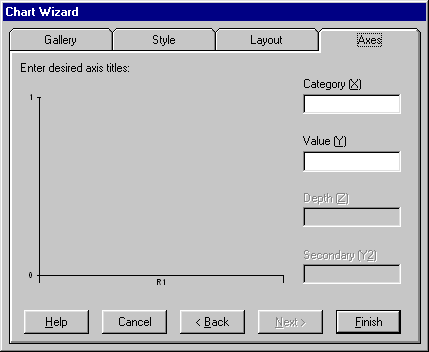
How to Create a Chart
To create a chart using the Chart Wizard:
- Select the cells that contain the data you want to present in the chart.
Tip: Select contiguous cells using drag select.
- Click Grid | Chart Wizard on the menu bar.
Alternative: Click the Chart Wizard tool on the toolbar.
The pointer changes shape (+).
- Drag the pointer to create the area in which you want the chart to appear.
Tip: You can move a chart to a new location on the grid after it is created.
The Chart Wizard dialog box appears.
- Complete the wizard by running it manually or by letting it run itself.
When the wizard completes, the chart appears on the grid.
Working with Charts
Once you create a chart, you can
Exporting a Collection Grid
You can export a collection grid using several popular formats, including
You might want to export a collection grid in order to take advantage of a particular spreadsheet or presentation application using Inspector data.
Note: If you are using Inspector on UNIX, you can export a collection grid using XML and tabbed text formats only.
What Information Is Exported?
The collection grid information saved varies based on the format to which you are exporting the grid. For example, XML, Excel, and HTML are capable of preserving information about colors and fonts. For more information, consult the user documentation for the product in which you will be using the exported file.
How to Export a Collection Grid in XML
To export a collection grid in XML format:
- Refresh the collection if you have not done so recently.
- Click Grid | Generate XML on the menu bar.
The Save As dialog box appears.
- Enter a name in the File Name field.
- Click Save.
How to Export a Collection Grid in Other Formats
To export a collection grid:
- Refresh the collection if you have not done so recently.
- Click Grid | Export Data on the menu bar.
The Save Table dialog box appears.
- Enter a name in the File Name field.
- Select the format type from the Save As Type drop-down list box.
- Click Save.
[previous] [next]
Copyright © 1999 Object Design, Inc. All rights
reserved.
Updated: 05/07/99 16:43:27