ObjectStore Inspector User Guide
Chapter 7
User-Defined Methods
Introduction
User-defined methods allow you to work directly with objects in an ObjectStore database from within Inspector. Specifically, user-defined methods allow you to perform the following operations by invoking the method from within Inspector:
In addition you can use a user-defined method to retrieve sets of ObjectStore objects.
This chapter describes how to work with user-defined methods in Inspector.
In this chapter
This chapter covers the following topics:
User-defined Methods Overview
This section describes the process of using user-defined methods in Inspector.
Prerequisites
In order to use user-defined methods in Inspector, you must observe the following rules:
For more information
For more information about DLL schemas and the ossg utility, see Managing ObjectStore and Building ObjectStore C++ Applications.
Process
The process for using user-defined methods in Inspector involves the following:
- Define the methods in the ObjectStore DLL schemas.
- Register the methods using Inspector.
- Invoke the methods.
The following sections describe each stage in the process in detail.
Defining User-Defined Methods
This section describes the purpose of the user-defined methods supported in Inspector and how to define them.
Purpose
The purpose of the user-defined methods you can invoke through Inspector is defined in the following table.
Required Signature
Each user-defined method supported by Inspector has a required signature that must be exposed in order for it to be registered. This section describes those signatures.
Create
static PersistentClass* PersistentClass::methodName(
            os_database* aDB,
            const os_Dictionary<char*, void*>& args
      )
or
static PersistentClass* PersistentClass::methodName(
            os_segment* aSeg,
            const os_Dictionary<char*, void*>& args
      )
You use the aDB and aSeg arguments to specify information about the persistent storage location to be used.
The args argument can be used to specify arguments to the invoked method. The dictionary key is a mnemonic name for the argument; the dictionary value can be any of the following C++ types:
If one of the registered arguments of a create method is of type os_collection*, Inspector builds a transient os_collection and lets you specify any number of persistent objects to populate it. If type void* is one of the method's registered arguments, Inspector allows you to specify one persistent object to define the argument.
The create method cannot delete any key or value specified in the dictionary, and it should return the pointer to the newly created instance if no error conditions are detected (NULL otherwise).
Inspector opens the database in write mode and starts an update transaction before calling the method.
Read
returnType PersistentClass::methodName(void)
where returnType can be any of the following C++ types:
After you have registered a read method, Inspector is able to include it in the class instance format and to output the returned values as it would do with any class data member of the same type as the method's return type. Inspector opens the database in MVCC mode and starts a read-only ObjectStore transaction before calling any read method.
If the return value is a pointer to an object, the object itself is deleted by Inspector if the object is transiently allocated.
Update
int PersistentClass::methodName(
            const os_Dictionary<char*, void*>&args
      )
The args argument can be used to specify arguments to the invoked method. The dictionary key is a mnemonic name for the argument; the dictionary value can be any of the following C++ types:
If one of the registered arguments of an update method is of type os_collection*, Inspector builds a transient os_collection and lets you specify any number of persistent objects to populate it. If type void* is one of the method's registered arguments, Inspector allows you to specify one persistent object to define the argument.
The update method cannot delete any key or value specified in the dictionary, and it should return a nonzero value if no error conditions are detected (0 otherwise).
Inspector opens the database in write mode and starts an update transaction before calling the method.
Delete
static int PersistentClass::methodName(
            void* anObject
)
The anObject argument is used to specify the pointer to the persistent object that is to be deleted. Inspector assumes that anObject is actually a pointer to an instance of PersistentClass.
The delete method should return a nonzero value if no error conditions were detected (0 otherwise).
Inspector opens the database in write mode and starts an update ObjectStore transaction before calling the method.
Extent
static int PersistentClass::methodName(
            os_database *aDB, os_collection& aCollection
)
The aDB argument is the currently Inspected database. The aCollection is a collection created by Inspector which the user needs to populate.
The extent method should return a nonzero value if no error conditions were detected (0 otherwise).
Inspector opens the database in MVCC mode and starts a read-only ObjectStore transaction before calling the method.
Registering User-Defined Methods
Once you have defined a user-defined method, you need to register it before it can be invoked by Inspector. Registering a method is the process of adding information about the method to Inspector's metaknowledge about the current ObjectStore database.
This section describes how to register and unregister different user-defined method types.
The Register User-Defined Methods Window
You use the Register User-Defined Methods window to register all types of user-defined methods.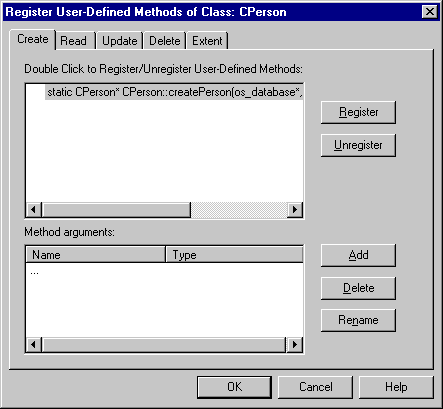
The window contains five pages, one for each method type. The main list box displays all the user-defined methods in the DLL schemas associated with the current database that satisfy the signature rules for the type of method you are registering.
Tip: A check mark to the left of the method indicates that the method is already registered.
How to open the window
To open the Register User-Defined Methods window:
- Select an instance.
- Select Instance | User-Defined Methods | Register from the menu bar.
Alternative: Select User-Defined Methods | Register from the Instance shortcut menu. The Register User-Defined Methods window appears.
How to Register User-Defined Methods
The basic procedure for registering a user-defined method is the same, regardless of the type. Note that update and create user-defined methods also allow you to define arguments. The procedure for defining arguments is described separately.
To register a user-defined method:
- Open the Register User-Defined Methods window.
- Click the tab that corresponds to the type of method you want to register.
- Select the methods you want to register.
Alternative: You can double-click a single method to register it.
- Are you registering either update or create user-defined methods?
If yes, see How to Add Arguments to Update and Create Methods.
If no, go to step 5.
- Click the Register button.
- To register another type of user-defined method, go to step 2. Otherwise, click OK to close the Register User-Defined Methods window.
How to Add Arguments to Update and Create Methods
When you register update and create user-defined methods, you also need to add the expected arguments and their types to Inspector's metaknowledge. For example, consider the following user-defined create method:
CPerson* CPerson::createPerson(
            os_database * aDB,
            const os_Dictionary<char *, void *> & args)
{
      CPerson* newPerson=new (aDB, get_os_typespec()) CPerson;
      newPerson->set_m_name ((char*)args.pick("name"));
      newPerson->set_m_city ((char*)args.pick("city"));
      int* age=(int*)args.pick("age");
      if(age!=NULL)
            newPerson->m_age=*age;
      return newPerson;
}
In this example, the user-defined method expects to find three different arguments in the directory: one for name, city, and age. These arguments need to be explicitly added to the method in Inspector.
Note: Arguments are case-sensitive.
How to add an argument
To add an argument to a user-defined method:
- Open the Register User-Defined Methods window.
- Click the tab that corresponds to the type of method you want to register (Update or Create).
- Select the method you want to register.
The Arguments list box displays any arguments that have already been defined for that method.
- Select the Name field and type the argument name.
- Select a type for the argument from the Type drop-down list.
- Click Add to associate the argument with the method.
- Repeat step 4 through step 6 for each argument you want to add to the user-defined method.
- Is the user-defined method already registered?
If yes, click OK to close the Register User-Defined Methods window.
If no, click Register to register the user-defined method and its arguments.
How to delete an argument
To delete an argument:
- Open the Register User-Defined Methods window.
- Click the Update or Create tab to display the method whose arguments you want to delete.
- Select the argument you want to delete.
- Click the Delete button.
- Repeat step 3 and step 4 for any other arguments you want to delete.
- Click OK to close the Register User-Defined Methods window.
How to rename an argument
To rename an argument:
- Open the Register User-Defined Methods window.
- Click the Update or Create tab to display the method whose arguments you want to rename.
- Select the argument you want to rename.
- Click the Rename button.
- Repeat step 3 and step 4 for any other arguments you want to rename.
- Click OK to close the Register User-Defined Methods window.
Unregistering User-Defined Methods
There are several reasons you might want to unregister a user-defined method from Inspector's metaknowledge. For example:
This section describes how to unregister a user-defined method.
Tip: A check mark appears to the left of every registered user-defined method.
How to Unregister a User-Defined Method
To unregister a user-defined method:
- Open the Register User-Defined Methods window.
- Click the tab that corresponds to the type of method you want to unregister.
- Select the methods you want to unregister.
Alternative: You can double-click a single method to unregister it.
- Click the Unregister button.
- To unregister another type of user-defined method, go to step 2. Otherwise, click OK to close the Register User-Defined Methods window.
Invoking User-Defined Methods
Once you have registered a user-defined method with Inspector's metaknowledge, you can invoke it during any Inspector session with the database with which you registered the method.
This section describes how to invoke different user-defined method types.
How to Invoke User-Defined Methods
The basic procedure for invoking a user-defined method is the same for all methods except extent methods. This section describes the basic procedure for invoking create, read, update, and delete methods. Type-specific procedures, including invoking extent methods, are detailed in the sections that follow.
To invoke a user-defined method:
- Select an instance belonging to a class for which you have registered a method.
- Select the method you want to invoke from the User-Defined Methods drop-down menu.
Tip: The User-Defined Methods drop-down menu is available from the Instances choice on the menu bar, or from the instances shortcut menu.
- Respond to the dialog box the system displays as a result of the method.
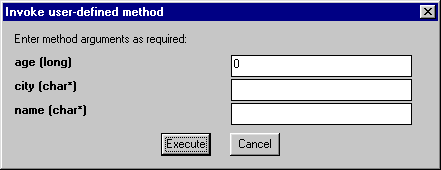
Note: The dialog box displayed by Inspector varies based on the type of user-defined method you invoked.
- Click Execute.
Invoking Read Methods
There are two ways to invoke user-defined read methods:
This section describes how to invoke a read method by adding it to the class instance format.
When is the method invoked?
User-defined read methods that are used in the definition of a class instance format are invoked each time Inspector computes the instance format for any object of the specified class.
How to add a method to the instance format
To add a user-defined method to an instance format:
- Open the Instance Format window for an instance belonging to a class for which you have registered a method.
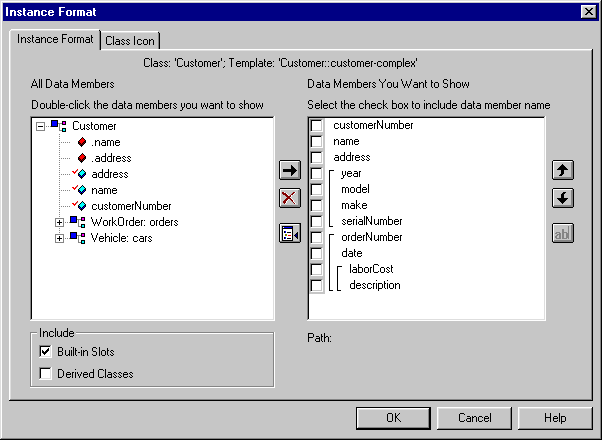
- Expand the data members of the class to display the user-defined method.
- Select the user-defined method and click the right arrow button to add the method to the Data Members You Want To Show list box.
The instance pane is updated to include the values associated with the user-defined method you selected.
Invoking Create and Update Methods
You invoke user-defined create and update methods using the procedure described in How to Invoke User-Defined Methods.
Once you have invoked the method, Inspector displays a dialog box that allows you to provide data members for the method's argument.
The specifics of this dialog box vary based on the method and its arguments. 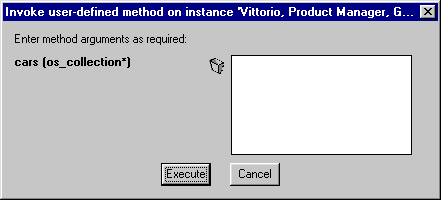
To enter values in the entry fields of the dialog box:
Tip: The trash bin that appears to the left of the entry fields on some dialog boxes can be used to remove data members from the entry field. If you change your mind about a particular data member, drag the data member from the list box to the trash bin.
Executing the method
Once you have provided the data members that satisfy the method's arguments, click the Execute button to execute the method.
Inspector displays an instance window with the updated (or created) instance if the method executed successfully.
Invoking Delete Methods
You invoke user-defined delete methods using the procedure described in How to Invoke User-Defined Methods. Inspector displays a dialog box asking you to confirm the delete operation.
Invoking Extent Methods
User-defined extent methods are used to create data views. To invoke this type of user-defined method you create a data view as follows:
- Right click on the class in the Schema Pane.
- Select User-defined Methods | Extent from the shortcut menu and then select the user-defined method.
A data view window appears, listing the data retrieved by the user-defined extent method.
See Creating a Data View for more information.
[previous] [next]
Copyright © 1999 Object Design, Inc. All rights
reserved.
Updated: 05/07/99 16:43:41