ObjectStore Inspector User Guide
Appendix B
Using Inspector as an OLE Server
Introduction
This chapter describes how to use Inspector as an OLE (object linking and embedding) Server so that you can insert Inspector objects in other applications.
In this chapter
This chapter covers the following topics:
Overview of Inspector as an OLE Server
Modifying Inspector Objects
Inserting Inspector Objects
In-Place Editing
Overview of Inspector as an OLE Server
Inspector is enabled as an OLE server. This means that you can insert objects from Inspector into OLE container applications, including Microsoft Word, Excel, and PowerPoint.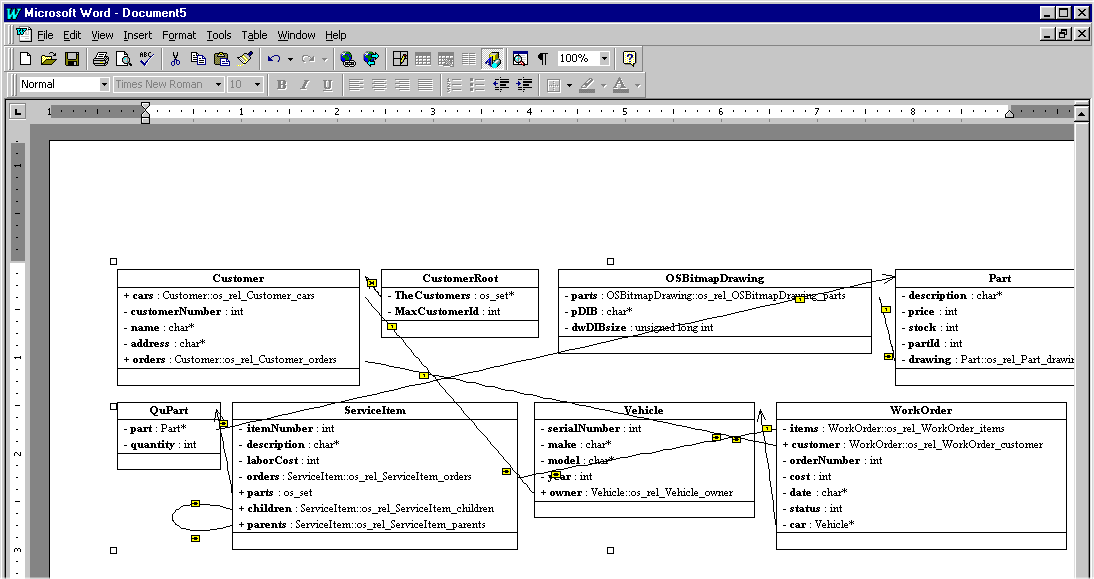
Purpose
The ability to use Inspector as an OLE server means that you can provide end users with access to information from an ObjectStore database - in a document format the user is familiar with, and without the need to do any programming. Once the information is in the container document, the user can take advantage of the container application's features for reporting, calculation, and presentation purposes.
What are Inspector objects?
Inspector objects include both of the following:
Data views, Instance windows, and the Physical Database Layout window are not considered Inspector objects for OLE purposes.
What information is inserted
The information that is inserted varies based on the Inspector object type:
Modifying Inspector Objects
You can modify schema diagrams and instance panes
If you choose to modify an Inspector object at the time you insert it into the container application, you will be prompted to save your changes when you exit from Inspector.
For more information
See Chapter 4, Schema Diagrams to learn more about working with diagrams. See Chapter 6, Collection Grids and Lists to learn more about collection grids.
Inserting Inspector Objects
Prerequisite
The database from which you want to insert objects cannot be open in Inspector.
How to insert an Inspector object
To insert an Inspector object:
- Open the container application.
- Click Insert | Object on the menu bar.
The Object dialog box appears.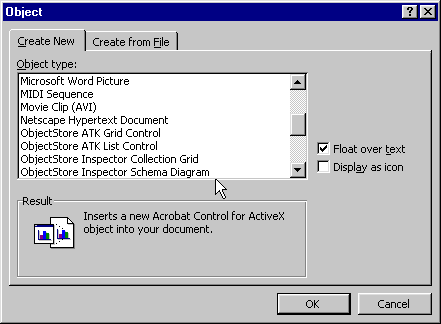
- Select one of the following from the Object Type list box:
- Click OK.
The Inspector Open dialog box appears.
- Select the database containing the information you want to insert in the container application and click OK.
The Inspector desktop appears; the title bars of both the main window and the main database view window display the name of the container document.
- Optionally, modify the diagram or collection grid. For example, you can change the schema diagram notation or the instance format.
- Click File | Exit & Return on the menu bar.
If you made any changes, Inspector displays a prompt asking if you want to save those changes. Click Yes to save the changes in Inspector; click No otherwise.
The Inspector object (that is, the schema diagram or collection grid) appears in the container document.
In-Place Editing
In-place editing is a feature that allows users to take advantage of Inspector editing functionality directly in the container document.
Tip: See Chapter 4, Schema Diagrams to learn how to work with diagrams. See Chapter 6, Collection Grids and Lists to learn about formatting collection grids.
How to perform in-place editing
To perform in-place editing:
- Open the container document.
- Select the Inspector object.
- Click Edit | OS Inspector Object | Edit on the menu bar.
Alternatives: Click OS Inspector Object | Edit on the object's content menu, or double-click the Inspector object.
- The menu and toolbar associated with the Inspector object appear in the container document.
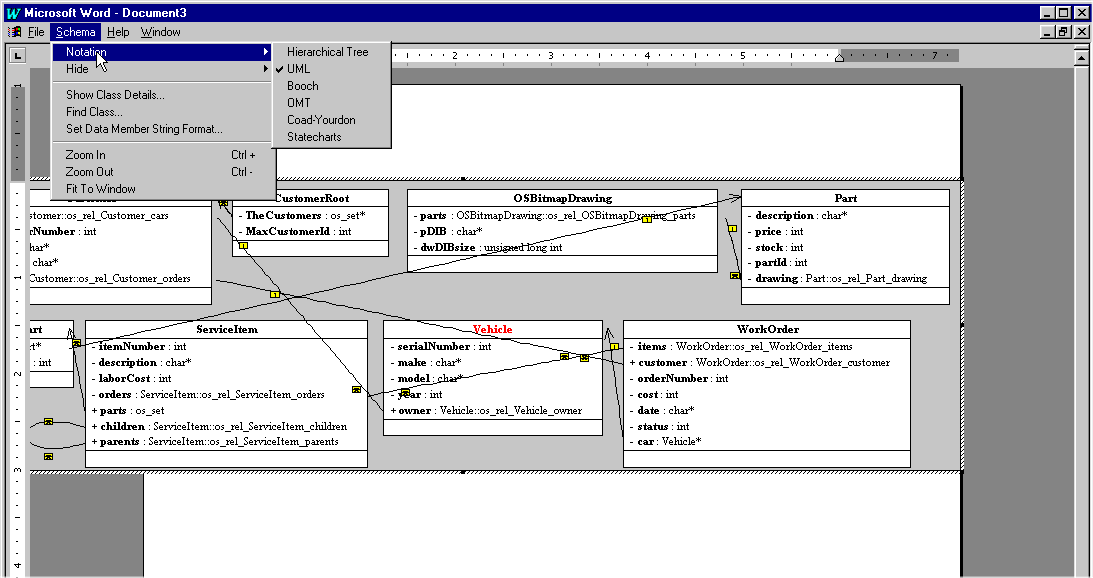
- Make the changes you want.
- Save the document as you would normally.
[previous] [next]
Copyright © 1999 Object Design, Inc. All rights
reserved.
Updated: 05/07/99 16:44:09