ObjectStore Inspector User Guide
Chapter 4
Schema Diagrams
Introduction
This chapter describes how to work with the schema diagram.
In this chapter
This chapter covers the following topics:
Changing Diagram Notation
Inspector supports several popular diagram notations. This section identifies these notations, and tells you how to change them and specify the notation you prefer to use as your default.
Supported Notation
Inspector supports the following diagram notation styles:
The default notation style is the tree hierarchy. This style is more scalable than the others and can provide better performance when working with large databases.
How to Change Diagram Notation
To change the diagram notation:
- Select Schema | Notation from the menu bar.
Alternative: Select Notation from the schema diagram shortcut menu.
- Select the style you want from the menu.
Saving the change
If you want to save the database view with the schema diagram notation you have selected, you must save the database.
Changing the Default Notation
The default schema diagram notation is specified on the Standard page of the Options dialog box. Changing the default notation affects the notation the first time you open a database. After that, the schema diagram is displayed with whatever notation you have saved it with.
To change the default schema diagram notation:
- Select Tools | Options from the menu bar to open the Options dialog box.
- Display the Standard page if it is not already displayed.
- Select the notation style you prefer to use as your default.
- Click OK.
Changing the Appearance of the Schema Diagram
This section describes the ways you can change the appearance of the schema diagram. You might want to consider changing the layout prior to printing a schema diagram.
Ways to Change the Diagram Appearance
There are several ways you can change the appearance of the schema diagram. You can
Changing the Diagram Zoom Level
To change the diagram zoom level, select a value from the Zoom tool drop-down list, or type a value.
Alternative 1: Select Zoom In or Zoom Out from the schema diagram shortcut menu.
Alternative 2: Press Ctrl + to zoom in, press Ctrl - to zoom out.
Changing Class Layout
To change the class layout, drag the class to the location you want.
Tip: Decrease the zoom level to see more of the diagram.
Changing the Shape of Relationship Routes
Each relationship route has four points: two endpoints and two attraction points. All points become visible when you click the route where it meets a class, as shown here in the relationship between the classes QuPart and ServiceItem.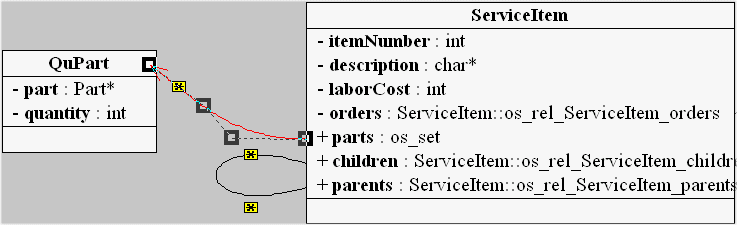
You change the shape of the relationship route by dragging one or both attraction points to a new location. You cannot change the placement of the route endpoints.
How to change a relationship shape
To change the shape of a relationship route:
- Click the route you want to reshape where it meets a class.
The route changes color to show it is selected; the four route points become visible.
- Drag the attraction points until the curve has the shape you desire.
- Click anywhere on the diagram background to stop the reroute mode.
Hiding Relationships
You can quickly simplify a schema diagram by hiding all relationships of a given type. Relationships hidden as described in this section are easily redisplayed.
Tip: You can remove individual relationships from a schema diagram using abstraction functions. To learn more about this feature, and about abstraction functions in general, see Altering the Contents of a Schema Diagram.
Types of relationships
You can hide the following types of relationships:
These features hide all relationships of the type you select.
How to hide all relationships
To hide all relationships of a given type, select the type of relationship from the Schema | Hide menu.
Alternative: Use the schema diagram shortcut menu.
How to redisplay a hidden relationship
To redisplay a hidden relationship, repeat the procedure you used to hide it.
Altering the Contents of a Schema Diagram
Another way to simplify the appearance of the schema diagram is to alter its contents using abstraction functions. Using abstraction functions is similar to hiding relationships, but abstraction functions differ in a few important ways:
Types of abstraction functions
The following abstraction functions are available on individual classes in a schema diagram. You can
You can also use an abstraction function to hide individual relationships one at a time.
How to apply an abstraction function
To apply an abstraction function:
- Select the class or relationship to which you want to apply the abstraction function.
- Select the abstraction function from the Schema | Alter menu, or from the class or relationship shortcut menu.
Inspector creates a new data view, with a schema diagram that reflects your changes.
[previous] [next]
Copyright © 1999 Object Design, Inc. All rights
reserved.
Updated: 05/07/99 16:42:58