ObjectStore Inspector User Guide
Chapter 2
Database Views
Introduction
This chapter describes how to create and work with database views. A database view is a tool that helps you work with the logical information about an ObjectStore database.
For more information: To learn about using Inspector to manage physical aspects of an ObjectStore database, see Chapter 9, Tools for Physical Analysis.
In this chapter
This chapter covers the following topics:
Overview
What Is a Database View?
A database view is a window that displays information about an ObjectStore database. It is called a view because it is just that -changes made in a database view do not affect the database itself.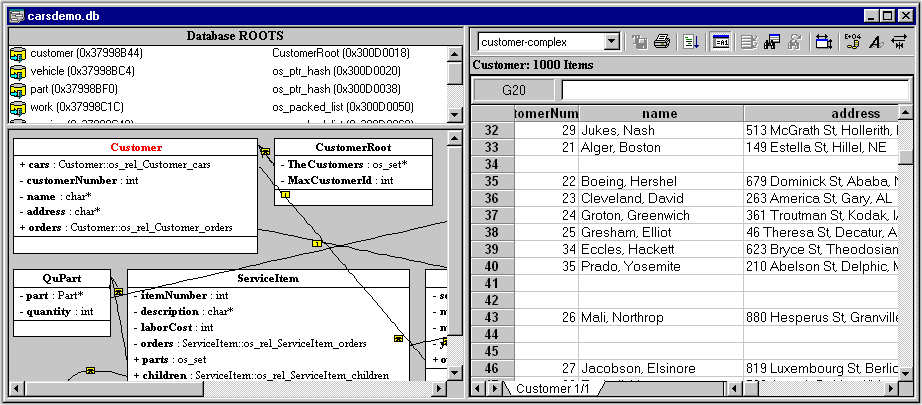
Three panes
The database view window contains three panes, each of which displays different information about the database:
For more information on the panes in a database view, see The Database View Window.
Database Views Contrasted to Data Views
A database view displays an ObjectStore database using a Database Root pane, a schema pane, and an instance pane.
A data view, on the other hand, simply displays an ObjectStore collection. The data view window is similar to the instance pane of the database view window in that both can display an ObjectStore collection using either a grid or a list. A data view also allows you to order and filter the ObjectStore collections it displays.
For more information about working with data views, see Chapter 3, Data Views.
Custom Database Views
Inspector supports two types of database views:
The Database View Window
Window Name
The name of the window depends on whether the window contains the main database view or a custom database view.
The Toolbar
The toolbar for a database view window consists of four groups of tools.
- Standard

The standard group contains tools to help you work with databases, database views, and schema diagrams.
- Schema

The schema group contains tools to help you work with schema diagrams.
- Instance

The instance group contains tools to help you format instances in Inspector, edit instances in ObjectStore, and display the instance pane using a collection grid or a collection list.
- Navigation
The navigation group contains tools to help you work with Navigation and Instance windows.
Hiding toolbar groups
By default, all four tool groups are displayed. You can hide any of the toolbar groups.
To hide a toolbar group:
- Click Tools |Toolbar Settings on the menu bar.
The Toolbar Settings dialog box appears.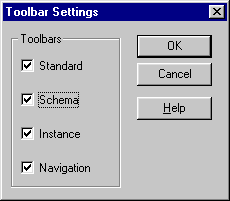
- Select the check boxes of the tool groups you want to hide.
- Click OK.
The toolbar is redisplayed, showing only the groups you have chosen to display.
Tip: Consider displaying all the toolbar groups until you become more familiar with Inspector.
The Database Roots Pane
The Database Roots pane displays all the roots that have been defined for the current database (or all the roots that exist within a particular database view).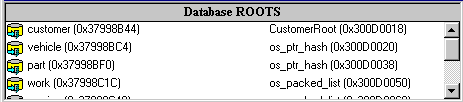
The Database Roots pane displays the root name and address, and the root value type and address. Double-click any value in the Database Roots pane to populate the instance pane with instances for that root.
For more information on working with roots, see Chapter 8, Roots.
The Schema Pane
The schema pane displays the database schema (or database schema view) using one of several popular modeling notations.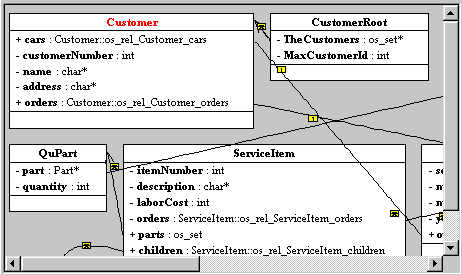
Available notations include
The default notation is the tree hierarchy. You can change the default notation, or change the notation on the fly using the toolbar, menu, or schema shortcut menu. The shortcut menu also includes a Find Class choice, to help you quickly locate a specific class within the schema.
Changing schema diagram layout
You can change the layout of schema diagrams. You can
Changing schema diagram contents
You can alter the contents of schema diagrams. For classes you select, you can
When you alter the default schema diagram in any of these ways, Inspector automatically creates a new, untitled database view that reflects these changes - you cannot alter the content of the default schema diagram.
For more information
See Chapter 4, Schema Diagrams for more information on working with diagrams.
The Instance Pane
The instance pane displays the extent of instances for a specific class or root.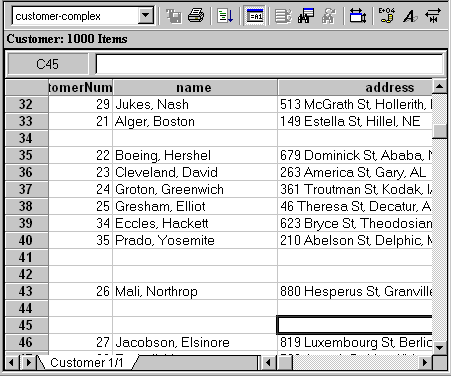
The instance pane and the data view are the primary ways you interact with ObjectStore collections in Inspector.
When you first open a database, the instance pane is empty. You can populate the pane a number of ways - the easiest is to double-click a class in the schema pane or a root in the Database Roots pane.
By default, instances appear in a collection grid. You can also display instance information in a simple list if you prefer.
For more information on working with instances, see Chapter 5, Classes and Instances. Also, see Chapter 6, Collection Grids and Lists.
Changing Pane Dimensions
You can change the dimensions of the panes in a database view by dragging the borders that separate them.
To change pane dimensions:
- Place the pointer on the border of the pane you want to resize.
The pointer changes shape when it is placed on the pane border.
- When the pointer changes shape, drag the border to change the size of the pane.
Creating a Custom Database View
This section describes how to create and work with custom database views. Once you have created a custom database view, see Modifying a Database View to learn more about how to change a database view's appearance.
Two Ways to Create
There are two ways to create a custom database view:
The database views that result from both of these operations are considered custom database views. Remember that changes to database views do not affect the ObjectStore database itself.
Creating a Custom Database View Explicitly
When you create a database view explicitly, Inspector creates an exact copy of the currently active database view, whether it is the main database view or a custom database view. This database view is unnamed (actually, it is called Untitled n, where n is some number to make it unique); you give it a name when you save it.
How to create a custom database view explicitly
To create a custom database view explicitly:
- Select the database view that you want to use as the foundation for the custom database view you want to create.
Note: The foundation database view can be either the main database view or another custom database view.
- Click File | Database View | Create on the menu bar.
Alternative: Click the Create Database View tool on the toolbar.
Inspector creates a new database view window containing the custom database view.
Creating a Custom Database View Implicitly
Inspector creates a custom database view implicitly any time you apply an abstraction function to the schema diagram in the main database view. Applying an abstraction function to a custom database view simply further modifies that view; a new database view is not created.
What is an abstraction function?
An abstraction function is an operation that permanently alters the composition of a database schema diagram. Abstraction functions do not affect the database or the database schema, simply the way a database is represented in a schema diagram.
You might want to use an abstraction function to filter out classes belonging to a third-party library, for example, in order to better concentrate on the classes related to the ObjectStore database.
To learn more about abstraction functions, see Changing the Appearance of the Schema Diagram.
How to create a custom database view implicitly
To create a custom database view implicitly:
- Select the database view that you want to use as the foundation for the custom database view you want to create.
Note: Applying abstraction functions to a custom database view does not create a new database view.
- Select the class whose appearance in the diagram you want to alter.
- Click Schema | Alter on the main menu.
A drop-down menu appears.
- Select the abstraction function you want to apply from the drop-down menu.
Inspector creates a new database view window containing the custom database view.
Saving a Custom Database View
How to save a custom database view
To save a custom database view:
- Click File | Save on the main menu.
Alternative: Click the Save tool on the toolbar. The Save Database View dialog box appears.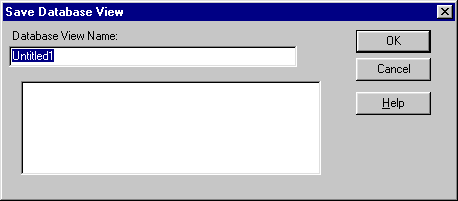
- Type a name in the Database View Name field.
- Click OK.
Saving the main database view
You do not explicitly save the main database view. If you make any changes to the main database view - changing the layout of the schema diagram or defining a new view instance format, for example - Inspector displays a prompt asking if you want to save those changes when you close the database in Inspector.
Opening a Custom Database View
You can display multiple custom database views for the current database. You might want to do this if you have defined views using different schema notation and abstraction functions, for example.
How to open a custom database view
To open a custom database view:
- Click File | Database View | Open on the menu bar.
Alternative: Click the Open Database View tool on the toolbar. The Open a Database View dialog box appears.
Note: The Open a Database View dialog box is similar to the Save Database View dialog box.
- Select the database view you want to open from the list box and click OK.
Alternative: Double-click the database view name.
The custom database view window appears.
Deleting a Custom Database View
You can delete a custom database view at any time. Consider deleting obsolete custom database views to eliminate unnecessary metaknowledge associated with the database.
How to delete a custom database view
To delete a custom database view:
- Click File | Database View | Delete on the menu bar.
The Delete a Database View dialog box appears. Note: The Delete a Database View dialog box is similar to the Save Database View dialog box.
- Select the database view you want to delete from the list box and click Delete.
Alternative: Double-click the database view name.
Inspector displays a dialog box asking you to confirm the delete operation.
- Click Yes to delete the database view; click No to cancel the delete operation.
Modifying a Database View
You can modify database views in several ways. This section describes those ways and tells you where to find more information.
Schema Diagram Layout
You can change the layout of the schema diagram in a database view in a number of ways. For example, you can change diagram notation, move classes, reshape relationship routes, and hide information. These types of changes affect only the appearance of the schema diagram itself; they do not cause a custom database view to be created.
See Chapter 4, Schema Diagrams for more information about working with schema diagrams.
Abstraction Functions
As described earlier in this chapter, abstraction functions enable you to permanently alter the composition of a schema diagram. Applying an abstraction function to the schema diagram in the main database view always results in the creation of a custom database view.
See Altering the Contents of a Schema Diagram for more information on abstraction functions.
Instance Format
Inspector provides several features that let you customize the appearance of instances. Changes you make in the Instance Format dialog box affect the instance appearance everywhere it is displayed - custom database views, data views, and so on.
See Customizing the Instance Display for more information.
[previous] [next]
Copyright © 1999 Object Design, Inc. All rights
reserved.
Updated: 05/07/99 16:42:36